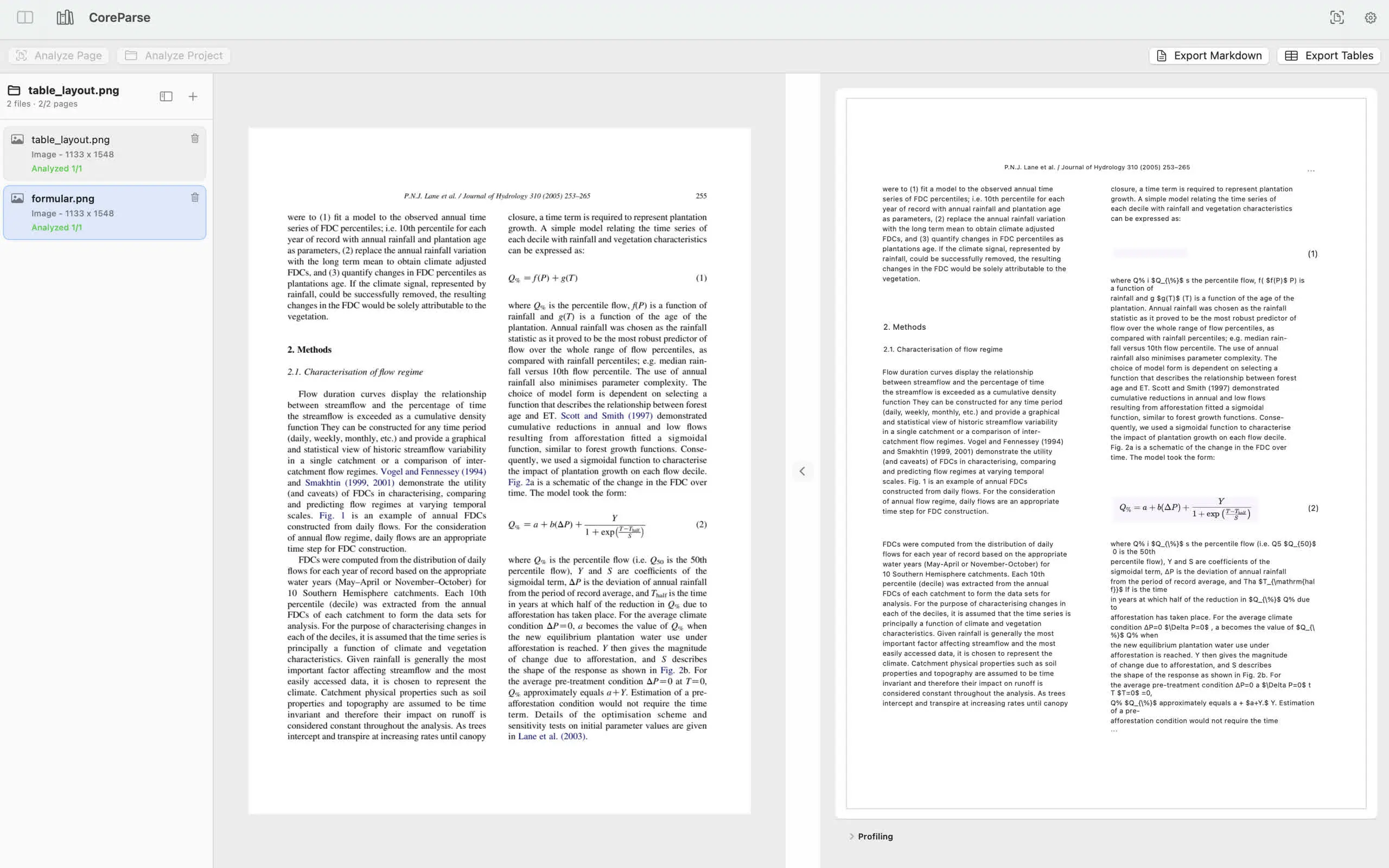
When you need to extract text from a PDF or scanned image, the first choice is not only which OCR tool to use. It is where the document gets processed.
Cloud OCR sends files to a remote service. Local OCR runs the analysis on your own device. Both can be useful, but they create very different tradeoffs for privacy, control, and repeatable document work.
What cloud OCR does well
Cloud OCR can be convenient when a team needs shared processing, central APIs, or automated pipelines. It can also be easier to start with because the service provider manages the models and infrastructure.
That model works best for documents that are already safe to upload and for workflows where remote processing is expected.
Why local OCR matters
Local OCR keeps the source file and OCR result on your Mac. That is important when you are working with:
- Private research notes
- Contracts and financial documents
- Customer forms
- Internal reports
- Scanned PDFs that should not leave your device
Local processing also gives you a tighter review loop. You can compare recognized text, tables, and formulas against the original page before exporting anything.
Accuracy is only part of the workflow
OCR accuracy matters, but document work rarely ends at plain text. Many PDFs need layout inspection, table extraction, or Markdown export. A local workbench is useful when you need to review each page and decide what should become reusable structure.
For technical documents, formulas may also matter. In that case, optional formula recognition keeps everyday OCR simpler while still supporting academic or scientific pages when needed.
When to choose local OCR
Choose local OCR when document privacy, manual review, or offline control matters more than centralized automation. It is a good fit for researchers, students, analysts, and Mac users who want to keep sensitive files out of cloud upload flows.
CoreParse is built around that local workflow: open a PDF or image, analyze it on your Mac, inspect the result beside the source page, then export Markdown or tables when you are ready.