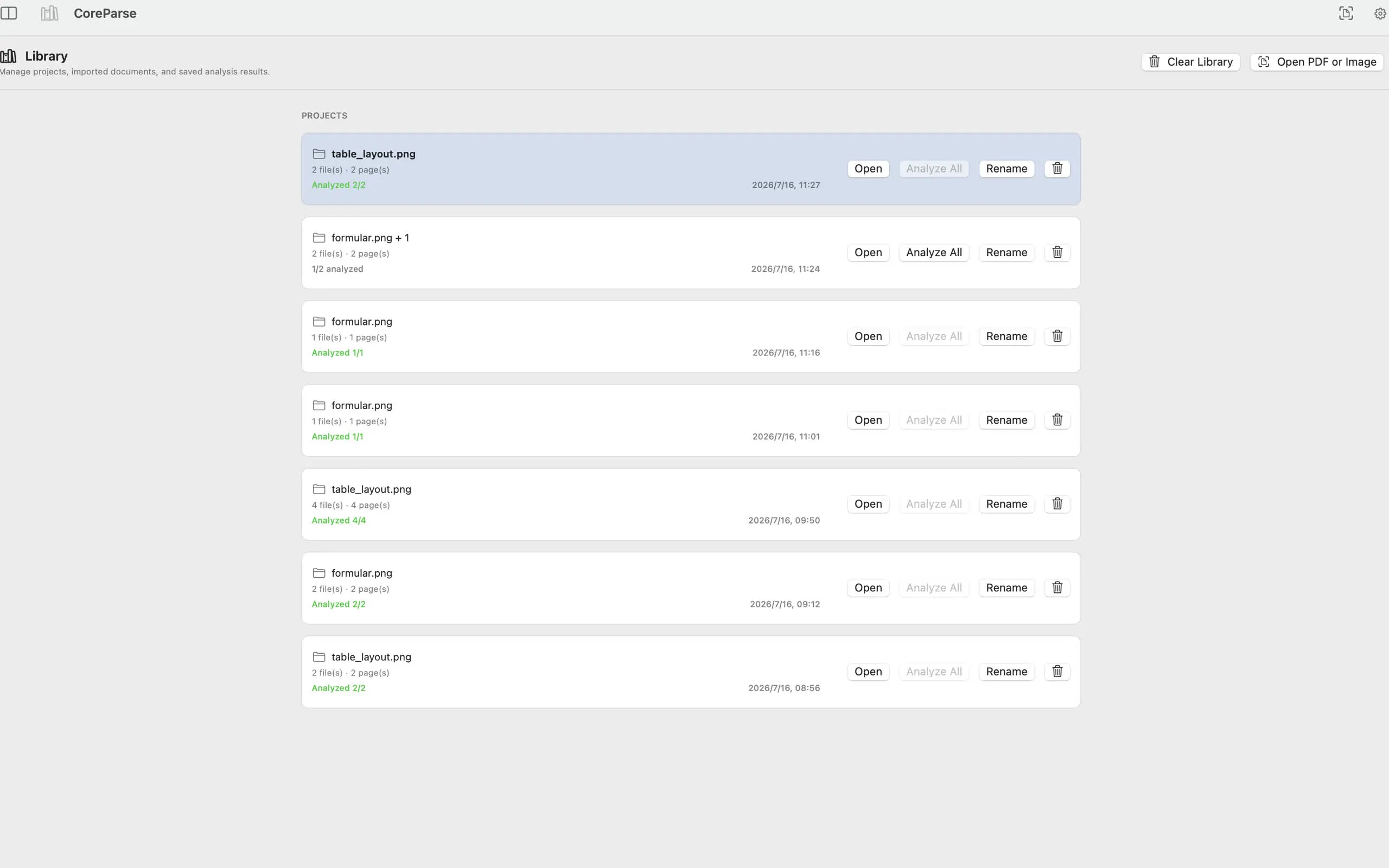
Many PDF files already contain selectable text. Scanned PDFs do not. They are usually page images wrapped inside a PDF container, so you need OCR before the content can be searched, copied, or exported.
On Mac, a local OCR workflow keeps that process on your device.
Start with the document type
Before running OCR, check what kind of PDF you have:
- A scanned PDF needs image-based OCR.
- A digital PDF may already contain text but still need layout cleanup.
- A technical PDF may need formula recognition.
- A report or invoice may need table extraction.
The right OCR workflow depends on what you want to recover from the document.
Analyze the PDF locally
With CoreParse, you can import a PDF and run analysis on your Mac. The app reads the file locally, analyzes each page, and keeps results on the device.
For privacy-sensitive PDFs, this avoids uploading the source document to a cloud OCR service.
Review before exporting
The review step is important. OCR can identify text, but the useful result often depends on layout. You may need to check whether headings, paragraphs, tables, and formulas were recognized correctly.
Reviewing results beside the original scan helps you catch mistakes before sending the content into notes, spreadsheets, or downstream editing tools.
Export the format you need
After review, export based on the next step in your workflow:
- Markdown for notes, research, and writing
- Individual tables for spreadsheet work
- Page-level results for document review
This keeps the workflow practical: analyze once, inspect the result, and only export the structure you need.
A local-first default
Local OCR is a strong default for personal documents, research papers, internal PDFs, and scanned files that should stay private. Cloud OCR can still be useful for centralized automation, but it is not required for many Mac workflows.